Configuring Azure Admin Access
This guide walks you through creating the separate FactorFifty-admin App Registration that Factor Fifty uses for managed operations that create, update, or delete Azure resources.
Complete the Azure Subscription onboarding guide first. Factor Fifty supports three separate Azure credential types:
| App Registration | Factor Fifty credential type | Azure access |
|---|---|---|
FactorFifty-reader | Read-only | Reader and any optional read-only roles |
FactorFifty-billing | Billing | Narrow Cost Management export control and read access to the exact export container |
FactorFifty-admin | Admin | Contributor and Role Based Access Control Administrator |
Do not reuse a Client ID or client secret between these credentials. Keeping resource reads, billing ingestion, and managed changes separate lets you revoke one capability without interrupting the others.
Prerequisites
- An Azure subscription already connected with
FactorFifty-reader - Access to the Microsoft Entra admin center or Azure Portal
- Application Administrator or Global Administrator access in the Microsoft Entra tenant to create the App Registration
- Owner, User Access Administrator, or Role Based Access Control Administrator access on each subscription where you want to grant Admin credential access
- Access to the Factor Fifty project that contains the Azure environment
Step 1: Create the Admin App Registration
- Open the Microsoft Entra admin center
- Navigate to Identity → Applications → App registrations
- Click + New registration
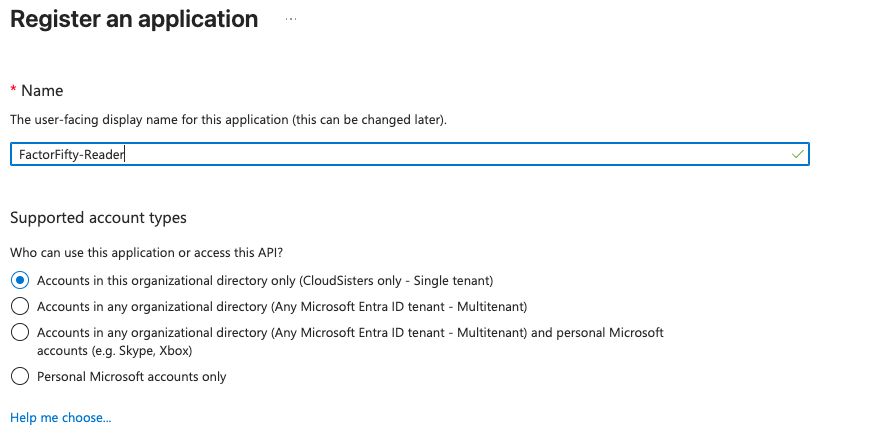
- Fill in the registration form:
| Field | Value |
|---|---|
| Name | FactorFifty-admin |
| Supported account types | Accounts in this organizational directory only (Single tenant) |
| Redirect URI | Leave empty |
- Click Register
Copy the Application Details
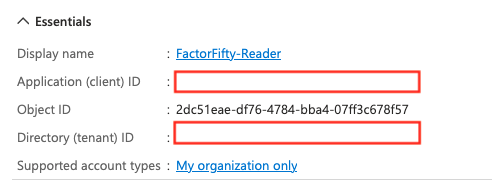
After registration, copy and save the following values from the Overview page:
- Application (client) ID
- Directory (tenant) ID
Make sure these values come from FactorFifty-admin, not FactorFifty-reader.
Step 2: Create a Client Secret
- In the
FactorFifty-adminApp Registration, navigate to Certificates & secrets - Under Client secrets, click + New client secret
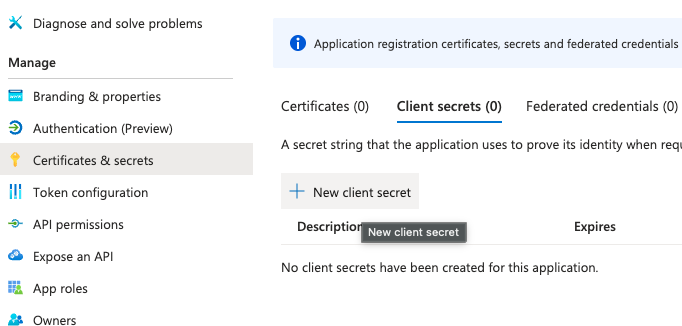
- Enter a description such as
factorfifty-admin-secretand select an expiry period - Click Add
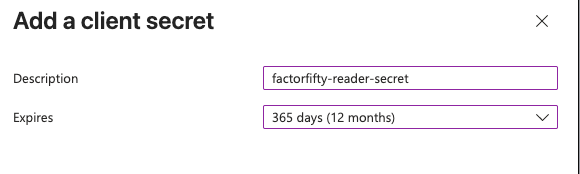
Copy the client secret Value, not its Secret ID. The value is shown only once. Store it securely and record its expiry date so it can be replaced before it expires.

Step 3: Assign the Subscription Roles
Assign both roles at subscription scope. Factor Fifty can create resources and resource groups dynamically, so the Admin credential needs access to current and future resource groups in the subscription.
- In the Azure Portal, navigate to Subscriptions and select the subscription
- Click Access control (IAM) in the left menu
- Click + Add, then Add role assignment
- In the Role tab, search for and select Contributor
- Click Next
- In the Members tab, select User, group, or service principal, then click + Select members
- Search for
FactorFifty-admin, select it, and click Select - Confirm that you selected
FactorFifty-admin, then click Review + assign - Repeat the role assignment steps and select Role Based Access Control Administrator
Contributor allows Factor Fifty to manage Azure resources, but it does not allow Azure RBAC role assignments. Role Based Access Control Administrator adds the role-assignment permissions required by modules such as Azure Container Registry and Key Vault integrations. Assign both roles only to FactorFifty-admin; do not assign either role to FactorFifty-reader.
Role Based Access Control Administrator is a privileged role. Combined with Contributor at subscription scope, the Admin credential can manage resources and grant access throughout that subscription. Keep it as a dedicated App Registration, protect and rotate its secret, and review its Azure Activity Log regularly.
Microsoft Entra propagation can take a moment. Wait briefly, then search by the Application (client) ID of FactorFifty-admin.
Multiple Subscriptions
Repeat both role assignments for every subscription managed by Factor Fifty. Subscription scope covers all current and future resource groups without extending access to unrelated subscriptions.
Step 4: Add the Admin Credential in Factor Fifty
- Open the Factor Fifty project that contains the Azure environment
- Go to Azure Credentials and click Add Azure Credential
- Enter a recognizable name, such as
Production Admin - Enter the Directory (tenant) ID, Application (client) ID, and client secret Value from
FactorFifty-admin - Enter the client secret expiry date
- Select Admin as the credential type
- Save the credential
- Add or edit the Azure environment and select this credential as its Admin credential
Keep the existing FactorFifty-reader credential selected as the environment's Read-only credential. The Admin credential supplements it; it does not replace it.
Step 5: Verify the Setup
Verify the following before using a managed operation:
FactorFifty-readeris linked as the environment's Read-only credentialFactorFifty-adminis linked as the environment's Admin credential- Both credentials belong to the same Microsoft Entra tenant
FactorFifty-adminhas Contributor at the intended subscription scopeFactorFifty-adminhas Role Based Access Control Administrator at the intended subscription scope- The admin client secret has not expired
Factor Fifty validates that the Admin credential can authenticate and access the selected subscription. Azure role assignments can take a few minutes to propagate, so wait briefly and validate again if the first attempt fails.
Alternative: CLI Setup
You can create the admin identity and role assignment with the Azure CLI:
# Sign in to Azure
az login

# Create the separate Admin App Registration and note its appId
az ad app create --display-name "FactorFifty-admin"

# Create its service principal
az ad sp create --id <admin-app-id>

# Create a client secret and save its password value securely
az ad app credential reset \
  --id <admin-app-id> \
  --append \
  --display-name "factorfifty-admin-secret" \
  --years 1

# Grant resource-management access on the intended subscription
az role assignment create \
  --assignee <admin-app-id> \
  --role "Contributor" \
  --scope "/subscriptions/<subscription-id>"

# Grant RBAC-management access on the intended subscription
az role assignment create \
  --assignee <admin-app-id> \
  --role "Role Based Access Control Administrator" \
  --scope "/subscriptions/<subscription-id>"
Verify authentication and the role assignment without changing resources:
az login --service-principal \
  --username <admin-app-id> \
  --password <admin-client-secret> \
  --tenant <tenant-id>

az resource list --subscription <subscription-id> --output table

az role assignment list \
  --assignee <admin-app-id> \
  --subscription <subscription-id> \
  --output table
Troubleshooting
Validation Failed
- Confirm that the Tenant ID, Client ID, and client secret all belong to
FactorFifty-admin - Confirm that you copied the client secret Value, not the Secret ID
- Confirm that the secret is active and has not expired
- Open the subscription's Access control (IAM) → Role assignments and verify that
FactorFifty-adminhas both Contributor and Role Based Access Control Administrator - Wait a few minutes for the App Registration or role assignment to propagate, then validate again
The Wrong App Registration Was Assigned
Remove any Contributor or Role Based Access Control Administrator assignment from FactorFifty-reader, then assign both roles to FactorFifty-admin. Confirm the Application (client) ID before saving each assignment because display names can be similar.
Admin and Read-only Credentials Do Not Match
Both App Registrations must belong to the same Microsoft Entra tenant. Check the Directory (tenant) ID on each App Registration's Overview page and replace the incorrect Factor Fifty credential.
A Managed Operation Cannot Assign Roles
Confirm that FactorFifty-admin has Role Based Access Control Administrator at subscription scope. Contributor alone cannot perform Microsoft.Authorization/roleAssignments/write. If the role was added recently, wait for Azure RBAC propagation and try again. Do not grant additional permissions to FactorFifty-reader.
Review or Revoke Access
To suspend managed write operations without interrupting read-only scans:
- Remove the Contributor and Role Based Access Control Administrator assignments from
FactorFifty-admin - Remove or unlink the Admin credential in Factor Fifty
The FactorFifty-reader App Registration and read-only credential can remain in place for scans, reporting, and identity checks.
Azure cost imports use FactorFifty-billing, which combines narrowly scoped export control with container-scoped Storage Blob Data Reader. The Admin credential is not used for Azure billing connections and does not need Cost Management or Blob access. See Connecting Azure Cost Management.