Onboarding an AWS Account
Factor Fifty supports two AWS onboarding modes. Read-only is recommended when you only need visibility and assessment. Choose Managed when Factor Fifty must deploy or change resources in the account.
| Capability | Read-only | Managed |
|---|---|---|
| Resource inventory and audit | Yes | Yes |
| Security assessment | Yes | Yes |
| Create, update, or delete resources | No | Yes |
| Deploy and maintain Factor Fifty IAM roles | No | Yes |
| Configure monitoring resources | No | Yes, according to the environment SLA |
| Runtime role | Customer-managed FactorFifty-ReadOnly | Customer-provided FactorFifty-Admin plus Factor Fifty-managed roles |
Read-only describes Factor Fifty's runtime access. The person launching the CloudFormation stack still needs permission to create the stack and its named IAM role.
Prerequisites
- Access to the AWS account you want to onboard
- A Factor Fifty project to add the environment to
- For read-only onboarding: permission to create a CloudFormation stack and named IAM role
- For managed onboarding: permission to create an IAM role and attach
AdministratorAccess
Read-only onboarding (recommended)
Read-only onboarding creates one role in your AWS account. Factor Fifty validates that it can assume the role, but it does not deploy any roles or other resources into the account.
Step 1: Start the environment in Factor Fifty
- Open the Factor Fifty project.
- Click Add new environment.
- Select Read-only.
- Enter the environment name and 12-digit AWS Account ID.
- Keep the default role name,
FactorFifty-ReadOnly. - Copy the generated External ID and leave the dialog open.
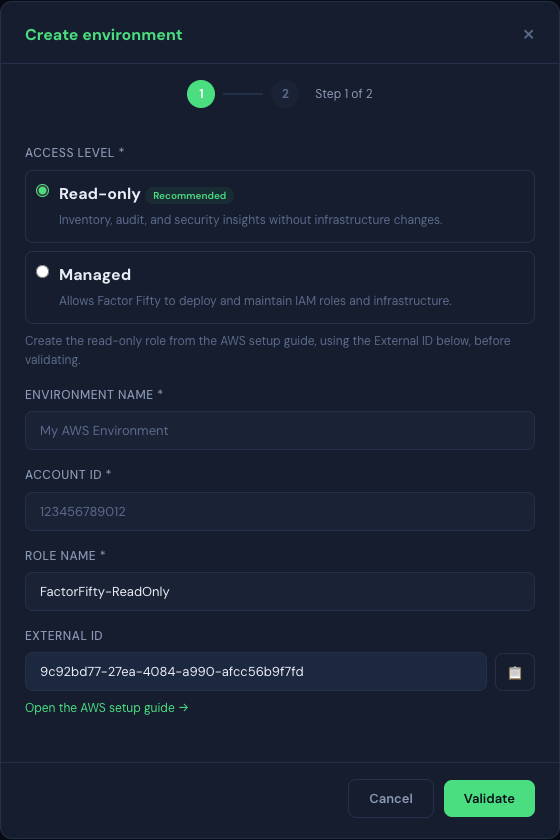
The External ID binds the role trust policy to this onboarding attempt and protects against the confused deputy problem.
Step 2: Create the read-only role in AWS
Launch the Factor Fifty read-only CloudFormation stack
- Sign in to the target AWS account and open the link above.
- Enter the External ID copied from Factor Fifty.
- Keep
FactorFifty-ReadOnlyas the role name. If you change it, enter the same name in Factor Fifty. - Review the template, acknowledge that it creates a named IAM resource, and choose Create stack.
- Wait for the stack status to become
CREATE_COMPLETE.
The stack creates only the IAM role. Its trust policy permits the Factor Fifty production account (872515262065) to call sts:AssumeRole when the External ID matches. The role uses the AWS-managed ReadOnlyAccess policy.
AWS ReadOnlyAccess is broad. It includes resource metadata and some data-plane read actions, including S3 Get actions, and AWS can update the managed policy over time. Review the linked policy before onboarding. If your policy requires metadata-only access, contact CloudSisters before continuing; the automated onboarding flow does not yet support a reduced custom policy.
Step 3: Validate and save
- Return to the open Factor Fifty dialog.
- Choose Validate. IAM changes can take several seconds to propagate, so retry once if the first attempt fails.
- Select the environment SLA.
- Choose Save.
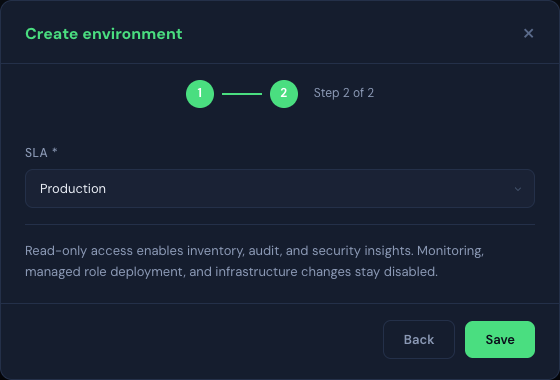
For read-only environments, the second step does not offer managed integrations or monitoring because those capabilities require Managed access.
The environment is connected after validation succeeds. Factor Fifty stores the read-only role as customer-managed and does not enqueue role deployment.
Manual role creation
If your organization does not allow the supplied CloudFormation stack, create an IAM role with the same settings:
- In IAM, choose Roles → Create role → Custom trust policy.
- Use the trust policy below, replacing
<EXTERNAL_ID>with the value from Factor Fifty.
{
  "Version": "2012-10-17",
  "Statement": [
    {
      "Effect": "Allow",
      "Principal": {
        "AWS": "arn:aws:iam::872515262065:root"
      },
      "Action": "sts:AssumeRole",
      "Condition": {
        "StringEquals": {
          "sts:ExternalId": "<EXTERNAL_ID>"
        }
      }
    }
  ]
}
- Attach the AWS-managed
ReadOnlyAccesspolicy. - Name the role
FactorFifty-ReadOnly. - Return to Factor Fifty and validate the role.
Managed onboarding
Managed onboarding is required when Factor Fifty must deploy IAM roles, configure monitoring, or plan and deploy infrastructure. The onboarding role has administrative permissions because it bootstraps and maintains the narrower operational roles used by the platform.
Unlike read-only onboarding, the FactorFifty-Admin role remains available to Factor Fifty for managed operations. Use this mode only for accounts where that access has been approved.
Step 1: Start the environment in Factor Fifty
- Open the Factor Fifty project and click Add new environment.
- Select Managed.
- Enter the environment name and AWS Account ID.
- Keep the default role name,
FactorFifty-Admin. - Copy the generated External ID and leave the dialog open.
Step 2: Create the admin onboarding role
- Open the IAM console in the target account.
- Choose Roles → Create role → Custom trust policy.
- Use the trust policy from the manual read-only instructions above, with the External ID from the Managed onboarding dialog.
- Attach the AWS-managed
AdministratorAccesspolicy. - Name the role
FactorFifty-Adminand create it.
Step 3: Validate and configure
- Return to Factor Fifty and choose Validate.
- Select the environment SLA.
- Enable the approved managed integrations.
- Choose Save.
After validation, Factor Fifty registers the admin role and queues deployment of the selected platform roles. Monitoring is configured for Production and Non-Production environments; it remains disabled for Unmanaged environments.
Connect an AWS billing source
AWS billing sources are configured at the customer level and can be reused across that customer's projects. This connection is separate from the environment access mode and uses a dedicated read-only role for Factor Fifty FOCUS exports; it cannot access workloads.
Launch the Factor Fifty AWS billing source CloudFormation stack
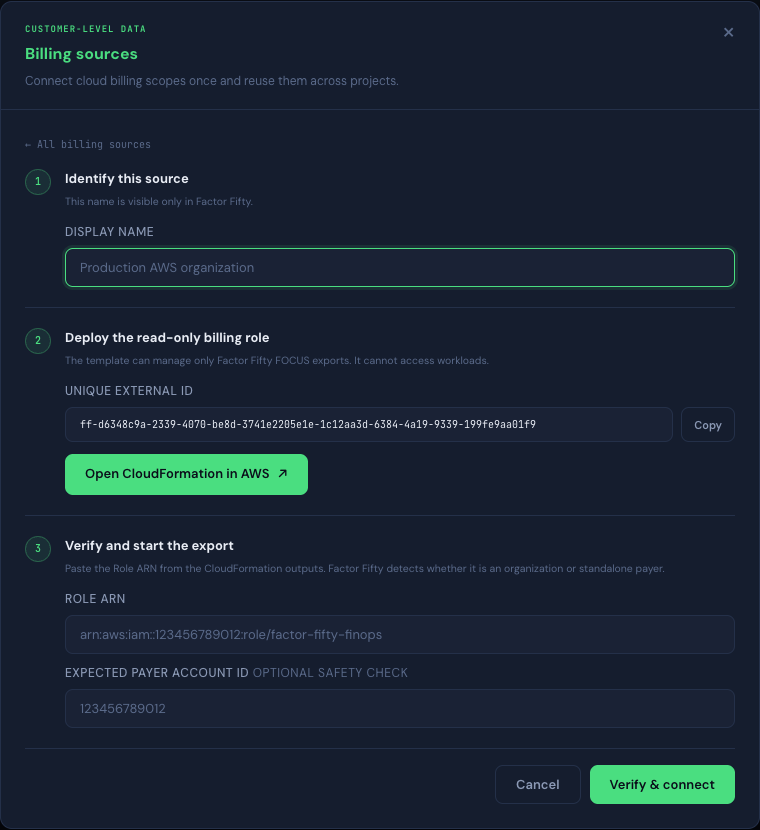
Sign in to the payer or organization management account before opening the link. The documentation link pre-fills the production template, Factor Fifty principal, and role name. Paste the External ID generated by Factor Fifty into the required ExternalId parameter. The Open CloudFormation in AWS button in Factor Fifty supplies that value automatically.
- Open the customer in Factor Fifty and go to Projects.
- Choose Billing Sources, then AWS billing export.
- Enter a display name for the source.
- Copy the generated External ID and choose Open CloudFormation in AWS, or use the documentation link above and paste the copied value into
ExternalId. - Deploy the stack in the payer or organization management account.
- Copy the Role ARN from the CloudFormation outputs into Factor Fifty. You can also enter the expected 12-digit payer account ID as an additional safety check.
- Choose Verify & connect.
Changing the access mode
Access mode is selected when the AWS environment is first onboarded. Do not add AdministratorAccess to FactorFifty-ReadOnly or reuse the read-only role as the admin role. Contact CloudSisters to change an existing environment between modes so the registration and deployed roles can be migrated safely.
Removing or disabling FactorFifty-Admin stops managed operations. Read-only environments have no admin role, and Factor Fifty explicitly blocks infrastructure planning and deployment for them.
Troubleshooting
Validation failed
Check all of the following:
- The AWS Account ID is the 12-digit ID of the account containing the role.
- The role name in Factor Fifty matches IAM exactly.
- The trust policy uses
arn:aws:iam::872515262065:rootas its principal. - The trust policy External ID matches the current Factor Fifty dialog.
- No Service Control Policy, permissions boundary, or explicit deny blocks
sts:AssumeRole. - IAM has had several seconds to propagate the new role or trust-policy change.
Read-only scans report missing permissions
- Confirm that
FactorFifty-ReadOnlystill has the AWS-managedReadOnlyAccesspolicy attached. - Check for Service Control Policies, permissions boundaries, session policies, or explicit denies that reduce the role's effective permissions.
- Confirm that the CloudFormation stack is still present and has not drifted.
Managed role deployment fails
- Confirm that
FactorFifty-AdminhasAdministratorAccessattached. - Check whether Service Control Policies or permissions boundaries block IAM role creation or policy attachment.
- Open the AWS onboarding status in Factor Fifty, correct the External ID if necessary, and choose Save & retry.
Revoke access
- Read-only: delete the CloudFormation stack or remove the
FactorFifty-ReadOnlyrole. - Managed: remove or disable
FactorFifty-Adminto stop further managed operations. Coordinate removal of Factor Fifty-managed roles with CloudSisters if the account is being fully offboarded.