Cloud posture
The Cloud posture tab turns the latest cloud scan into a framework-scoped remediation plan. It combines security, reliability, operations, performance, cost optimization, and sustainability results.
Use it to answer:
- How strong is the current posture for the selected framework?
- Which pillar is weakest?
- What should be fixed next?
- Which resources and accounts are affected?
- Who owns the remediation?
- Which risks have been formally accepted, and when do those acceptances expire?
Open Cloud posture
- Open Factor Fifty.
- Select Cloud posture in the customer navigation.
- Choose a framework.
- Select an account scope or leave All accounts selected.
- Choose AWS, Azure, or All clouds.
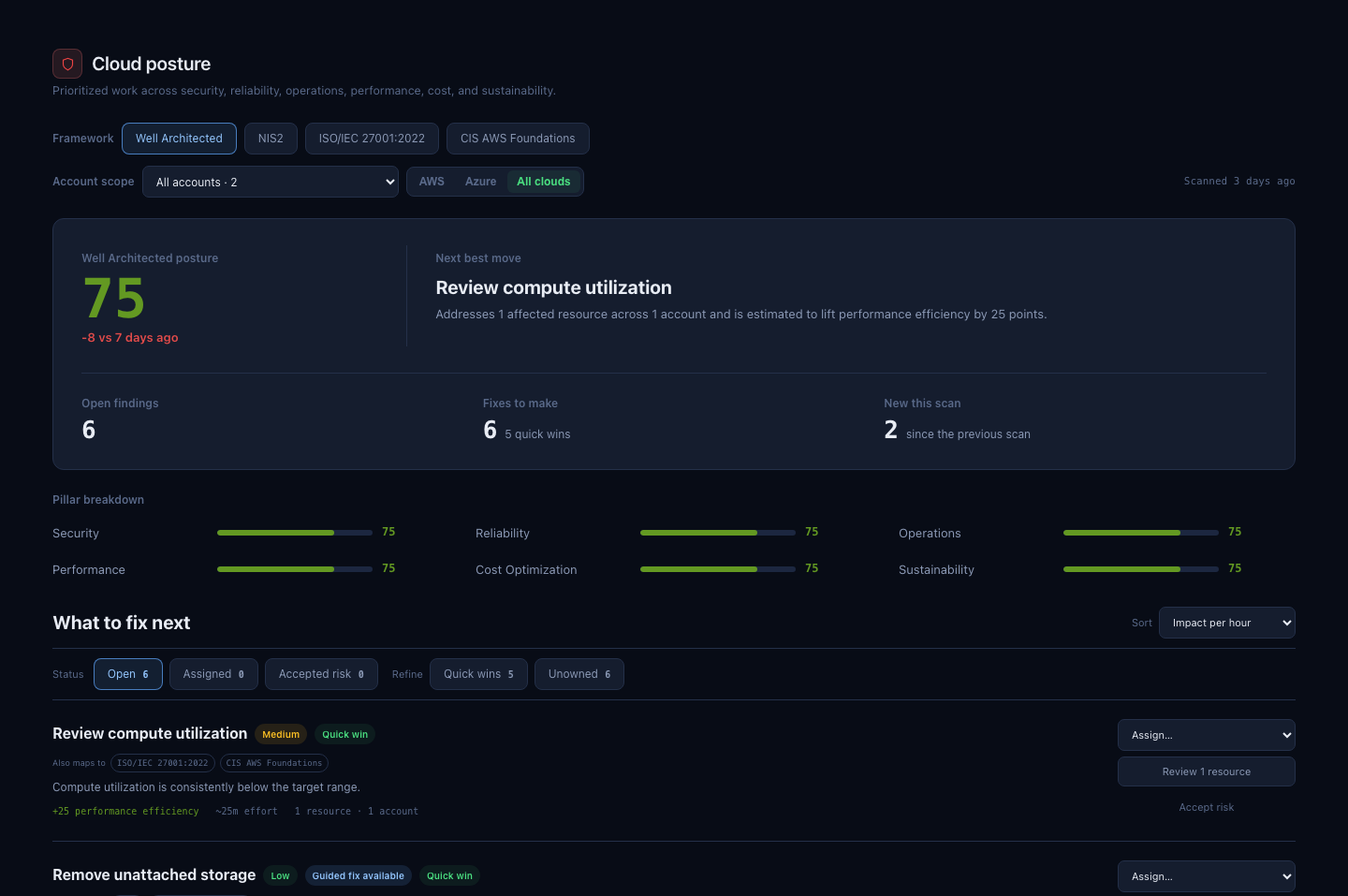
Framework lens
Framework buttons show the standards mapped in the latest scan. These include:
- Well Architected;
- NIS2;
- ISO/IEC 27001:2022;
- applicable provider or security benchmarks, such as CIS, when returned by the scan.
Selecting a framework changes the posture score, pillar breakdown, and remediation queue to that framework’s evaluations.
A finding can map to more than one framework. Fixing it can therefore improve multiple framework views.
Account and provider scope
Use Account scope to focus on one connected account or subscription. Leave All accounts selected for a customer-wide view.
The provider selector offers:
- AWS;
- Azure;
- All clouds.
The scan freshness label on the right shows how long ago the selected data was scanned.
Posture summary
The hero panel contains:
| Indicator | Meaning |
|---|---|
| Framework posture | Score derived from passed framework-scoped evaluations. |
| Trend | Difference from the comparison scan, normally around seven days earlier when available. |
| Next best move | Highest-ranked remediation in the current queue. |
| Open findings | Supporting findings in active remediation actions. |
| Fixes to make | Distinct active remediation actions. |
| New this scan | Findings not present in the previous available scan. |
The score summarizes the selected framework and scope. It does not mean that every resource is compliant or risk-free.
Pillar breakdown
The pillar bars show the score for:
- Security;
- Reliability;
- Operations;
- Performance;
- Cost Optimization;
- Sustainability.
A pillar marked not scanned has no usable evaluation in the current framework and scope. Prioritize low-scoring pillars, but also review critical and high-severity actions regardless of the overall score.
What to fix next
The remediation queue groups supporting findings into practical actions and ranks them by Impact per hour by default.
You can sort by:
- impact per hour;
- severity;
- lowest effort.
Use the status filters to switch between:
- Open actions;
- Assigned actions;
- Accepted risk.
Use Quick wins to focus on lower-effort actions and Unowned to find work without an assignee.
Interpret a remediation action
Each action can show:
| Information | Meaning |
|---|---|
| Title and severity | The grouped check and its highest operational priority. |
| Automation badge | A guided or policy-based fix is available. |
| Quick win | The estimated effort is relatively low for the expected impact. |
| Also maps to | Other frameworks that use the same finding. |
| Score lift | Estimated pillar improvement if the action is completed. |
| Effort | Catalogue estimate or severity-based baseline. |
| Resources and accounts | Scope of the supporting evidence. |
Impact and effort are prioritization aids. Review the underlying resources and remediation guidance before scheduling a change.
Review affected resources
Select Review n resources to open the supporting resource list.
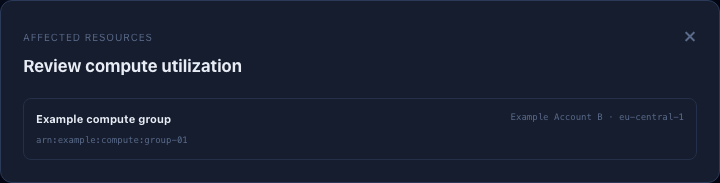
The dialog shows the resource name or identifier, account or subscription, region, and full provider identifier when available. Use it to route the action to the correct technical owner.
Assign work
Use Assign on an open action to select an available user. Assigned work appears under the Assigned status filter.
Select the action’s state control to change its owner or lifecycle state. Available states include open, in progress, resolved, and accepted risk.
Assignment records ownership in Factor Fifty; it does not make the cloud configuration change.
Accept risk
Select Accept risk when the organization has decided not to remediate the action immediately.
An accepted risk requires:
- a reason;
- an expiry date;
- an assignee or accountable user when appropriate.
Accepted risks move to the Accepted risk queue and remain visible with their reason and expiry. Review them before expiry.
Accepting risk does not resolve the finding or improve the underlying cloud configuration.
Scan coverage and freshness
The footer shows the number of framework evaluations, provider scope, scan date, and accepted-risk count.
When the newest scan cannot be rendered, Factor Fifty can show the latest available posture data and identifies the date in a notice. If there is no usable scan for the selected provider, the page shows an empty state.
Different providers and accounts can have different latest scan dates. Always confirm the scope and freshness label before comparing scores.
Recommended review routine
- Confirm the framework, account scope, provider, and scan freshness.
- Review the posture score and its change from the comparison scan.
- Identify the weakest pillar.
- Work through critical and high-severity actions first.
- Use Quick wins and Impact per hour to plan the remaining queue.
- Review affected resources and assign an owner.
- Record accepted risk only with a reason and expiry date.
- Recheck the next scan to confirm that completed work changed the underlying result.