Rightsizing
The Rightsizing tab turns the latest resource analysis into an action queue. Use it to identify oversized and unused resources, compare current and projected cost, and track what the team decides to do.
Rightsizing recommendations are planning inputs. Review workload requirements, resilience, licensing, and change windows before modifying or removing a cloud resource.
Open Rightsizing
- Open Factor Fifty.
- Select Rightsizing in the customer navigation.
- Choose Azure or AWS.
- Confirm the report date in the upper-right corner.
AWS rightsizing is marked Beta in the current interface.
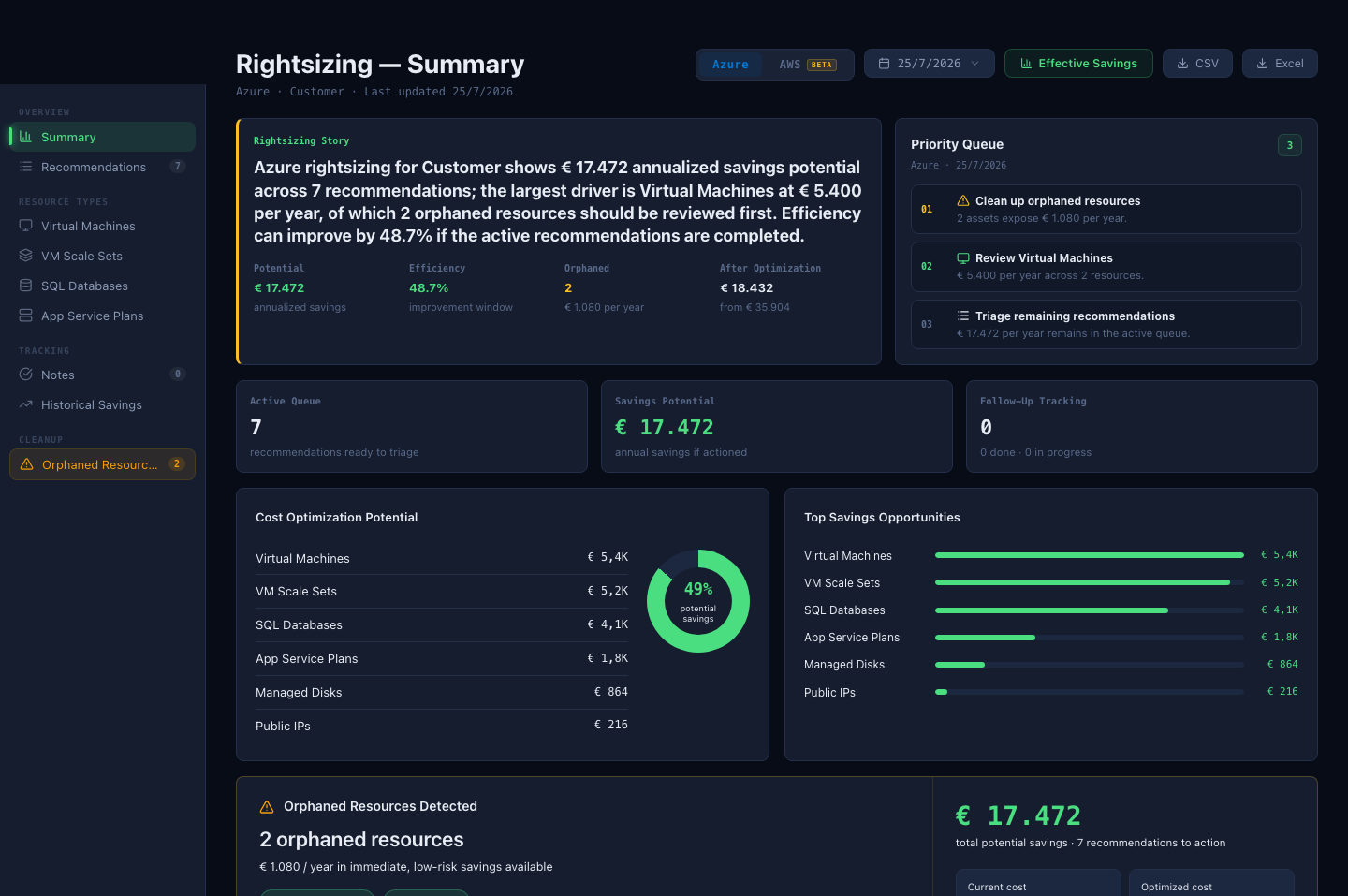
Provider and report date
The provider selector changes the recommendations, resource types, currency, and report dates shown on the page. Factor Fifty remembers your provider preference for this customer.
Use the date selector to review another available processing run. The selected date is the source date for the summary and recommendation list; it is not necessarily today.
Summary
The Summary combines the most important results from the selected report.
Rightsizing Story
The narrative states:
- the annualized savings potential;
- the number of active recommendations;
- the resource type with the largest opportunity;
- how many orphaned resources need review;
- the estimated efficiency improvement if the active queue is completed.
Annualized amounts are calculated from the monthly values in the selected report. They are estimates, not a guarantee of future savings.
Priority Queue
The Priority Queue ranks up to three next actions. It normally places low-risk cleanup, the largest resource-type opportunity, and remaining recommendation triage in a practical order.
Select an item to open its corresponding detailed view.
Key indicators
| Indicator | Meaning |
|---|---|
| Active Queue | Recommendations included in the current action totals. Excluded recommendations are called out separately. |
| Savings Potential | Monthly recommendation savings multiplied by 12. |
| Follow-Up Tracking | Recommendations with a note or action status, including completed and in-progress counts. |
Cost Optimization Potential
This panel groups annualized savings by resource type. The percentage in the donut is the potential saving compared with the current annualized cost of the active recommendation set.
Top Savings Opportunities
This panel ranks the same resource-type groups by annualized saving. Use it to decide where a deeper technical review will have the greatest financial effect.
Orphaned Resources Detected
An orphan is a resource that the analysis identifies as unused or unattached. The warning shows:
- the number of orphaned resources;
- their estimated annual cost;
- the resource categories involved;
- current cost, optimized cost, and the total recommendation opportunity.
Select View orphaned resources to inspect each item. Confirm retention, recovery, and ownership requirements before removal.
Effective Savings
Select Effective Savings to compare the current report with an earlier available report.
Choose a baseline date earlier than the current comparison date. The result helps distinguish recommendations that disappeared, changed, or remained open between processing runs.
Treat the comparison as evidence of change in the recommendation set. It does not by itself prove that a resource change caused the entire saving; validate the result against provider billing data.
All Recommendations
Select Recommendations in the left sidebar to open the complete action table.
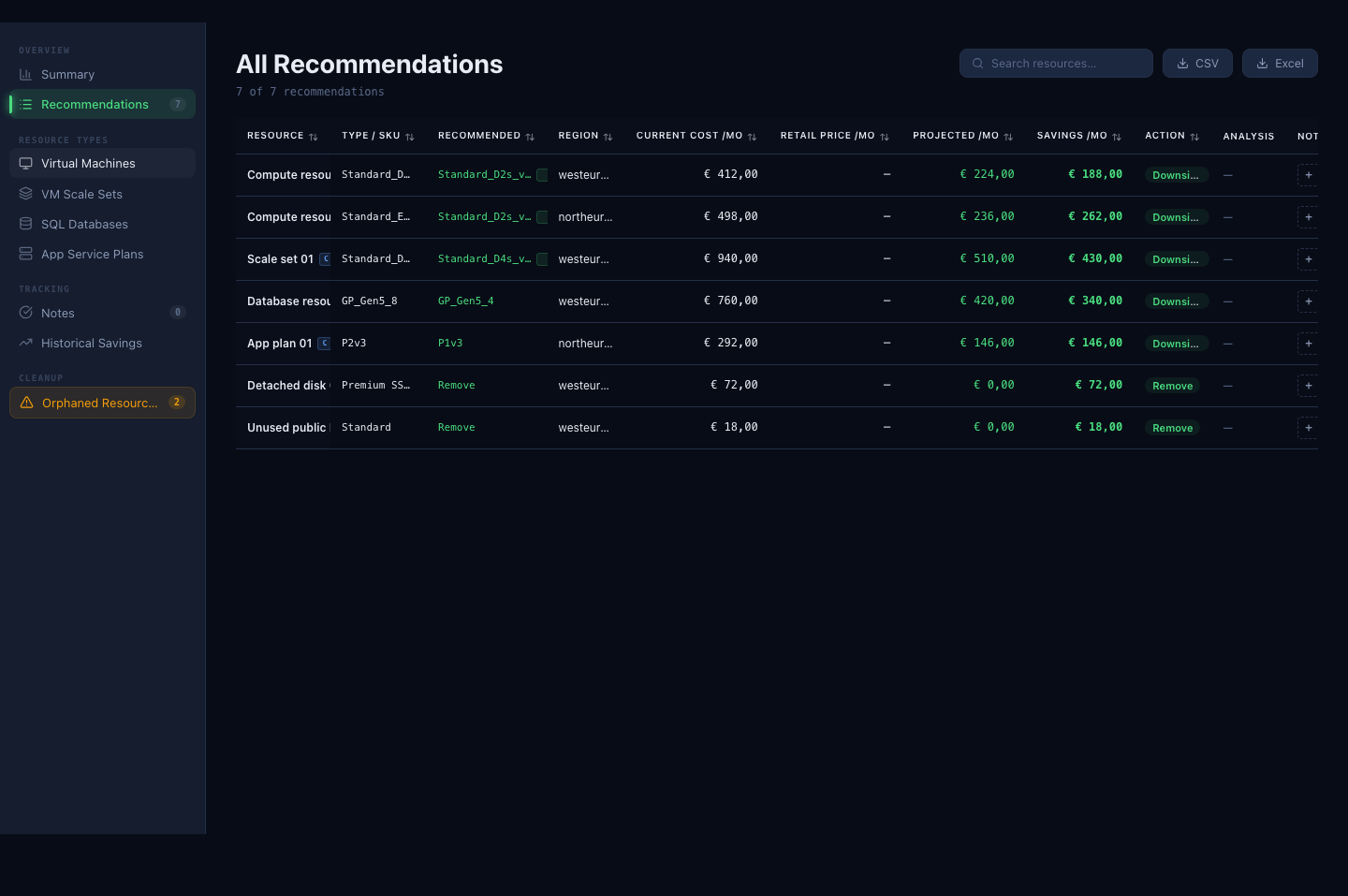
The table can include:
| Column | Meaning |
|---|---|
| Resource | Display name or provider resource identifier. |
| Type / SKU | Current resource type or instance size. |
| Recommended | Suggested target size or removal action. |
| Region | Cloud region or location. |
| Current cost /mo | Current estimated monthly cost. |
| Retail price /mo | Reference retail amount when returned by the data source. |
| Projected /mo | Estimated monthly cost after the recommendation. |
| Savings /mo | Current cost minus projected cost. |
| Action | Classification such as downsize or remove. |
| Analysis | Supporting utilization information when available. |
| Note | Add or update follow-up information. |
Use the search box to match resource names, IDs, types, regions, sizes, actions, or tags.
Notes and follow-up
Use the + control in a resource row to add a note. A note can record:
- a status such as Noted, In Progress, Done, Exclude, or Deferred;
- a comment;
- an end date;
- an exclusion-until date when the recommendation is temporarily excluded.
The Notes view brings tracked recommendations together. Excluded recommendations are omitted from active totals while their exclusion is in effect.
Notes document a decision; they do not resize or remove the cloud resource.
Resource-type views
The sidebar separates recommendations by provider-specific resource type. For Azure, this includes Virtual Machines, VM Scale Sets, SQL Databases, and App Service Plans. For AWS, it includes EC2 Instances, RDS Databases, EBS Volumes, and Elastic IPs.
Use these views when the technical owner wants to review similar resources together.
Historical Savings
Select Historical Savings to compare the recommendation history across an available start and end date. Use this view to track how the identified opportunity changes over time and to support regular FinOps reporting.
Export data
The summary and recommendation views provide CSV and Excel exports. Exports reflect the current provider, report date, and applicable view.
An export is a point-in-time copy. Recheck Factor Fifty before implementing changes if a newer report has become available.
Data periods and freshness
| Information | Period used |
|---|---|
| Summary and recommendation values | Selected rightsizing processing date |
| Annualized cost and saving | Selected monthly values multiplied by 12 |
| Effective Savings | Selected comparison date versus an earlier baseline |
| Historical Savings | User-selected range of available reports |
| Notes and statuses | Current Factor Fifty follow-up records |
If no report dates are available, Factor Fifty shows that rightsizing data has not been processed yet.
Recommended review routine
- Confirm the provider and report date.
- Read the Rightsizing Story and work through the Priority Queue.
- Review orphaned resources first, after confirming ownership and recovery needs.
- Open the largest resource-type opportunity and validate performance requirements.
- Add a note and owner-facing status for each accepted action.
- Compare reports with Effective Savings or Historical Savings.
- Export the agreed action list for the change process when needed.