Savings
The Savings tab opens the Cost Optimization page for commitment-based savings. It combines realised savings, coverage exposure, recommended plans, and the current commitment inventory.
Use it to answer:
- How much commitment saving has been realised this month?
- What percentage of eligible spend is covered?
- Is savings being missed because coverage is too low?
- Which commitments expire soon or have low utilization?
- Which proposed plan has the best balance of saving and flexibility?
Open Savings
- Open Factor Fifty.
- Select Savings in the customer navigation.
- Choose AWS or Azure in the upper-right corner.
The provider selection is remembered for this customer and controls the metrics and inventory shown on the page.
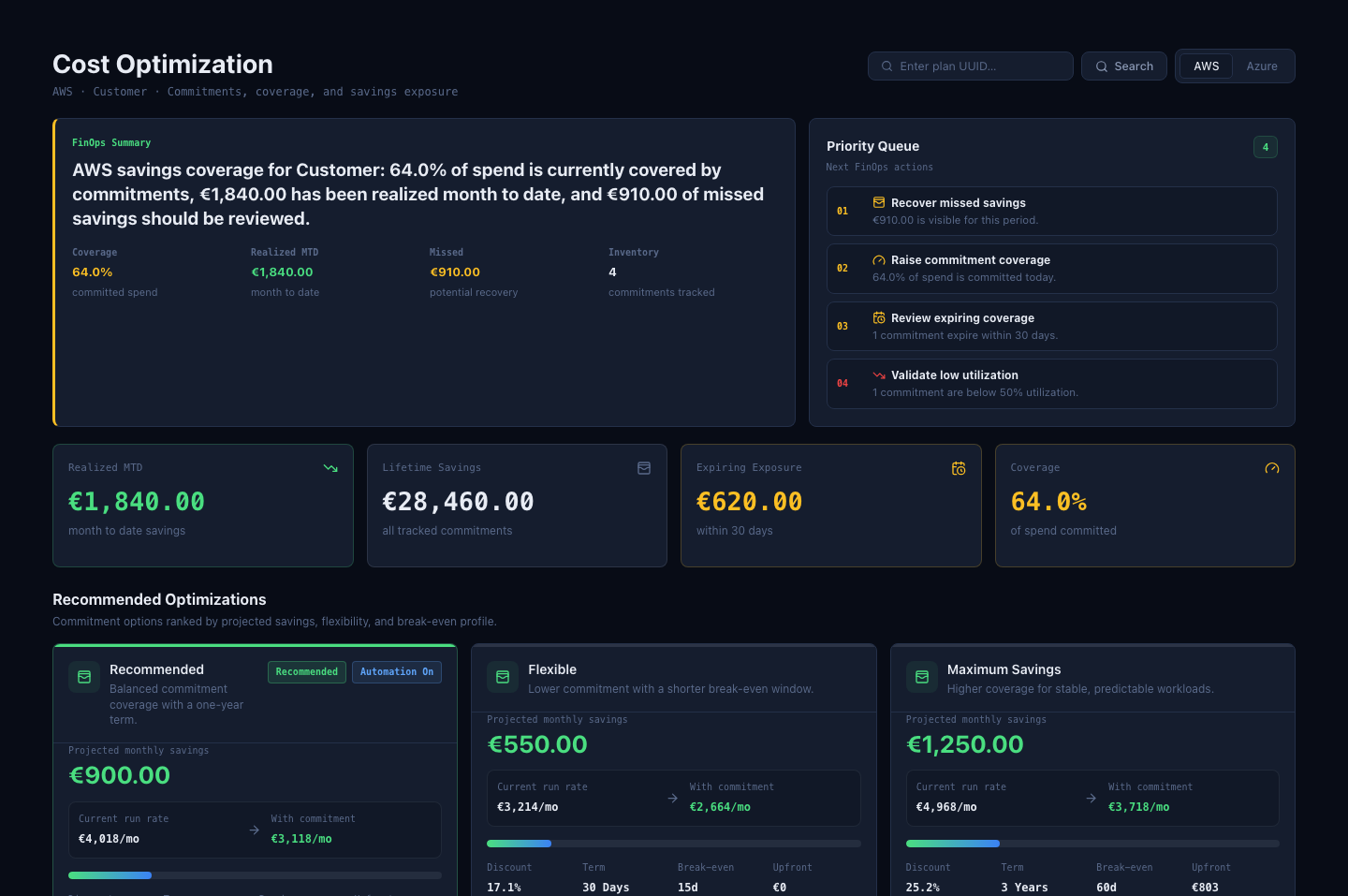
FinOps Summary
The narrative at the top of the page combines the current provider’s coverage, realised savings, missed savings, and inventory count.
The accompanying Priority Queue can recommend actions such as:
- recover missed savings;
- raise commitment coverage;
- review commitments expiring within 30 days;
- validate commitments with low utilization;
- evaluate the plan with the highest projected saving.
Key indicators
| Indicator | Meaning |
|---|---|
| Realized MTD | Commitment saving recorded in the current calendar month to date. |
| Lifetime Savings | Total saving returned across tracked commitments. |
| Expiring Exposure | Savings associated with commitments expiring within 30 days. |
| Coverage | Percentage of eligible spend covered by commitments. |
Coverage is not utilization. Coverage describes how much eligible spend is committed; utilization describes how much of an existing commitment is being consumed.
Recommended Optimizations
Plan cards rank commitment options by projected monthly saving, flexibility, and break-even profile.
Each card can show:
| Field | Meaning |
|---|---|
| Projected monthly savings | Estimated monthly saving compared with the eligible current run rate. |
| Current run rate | Monthly cost of the usage included in the plan analysis. |
| With commitment | Estimated monthly cost after the plan saving. |
| Discount | Projected saving as a percentage of the eligible current run rate. |
| Term | Commitment duration. |
| Break-even | Estimated time until the plan recovers its applicable upfront cost. |
| Upfront | Monthly or plan-level upfront amount returned by the analysis. |
The Recommended badge identifies the plan selected by the current analysis. Automation On indicates that the plan is active for the associated workflow; it does not remove the need for a financial review.
Review plan details
Select View Details on a plan to inspect its cost impact and included commitments.
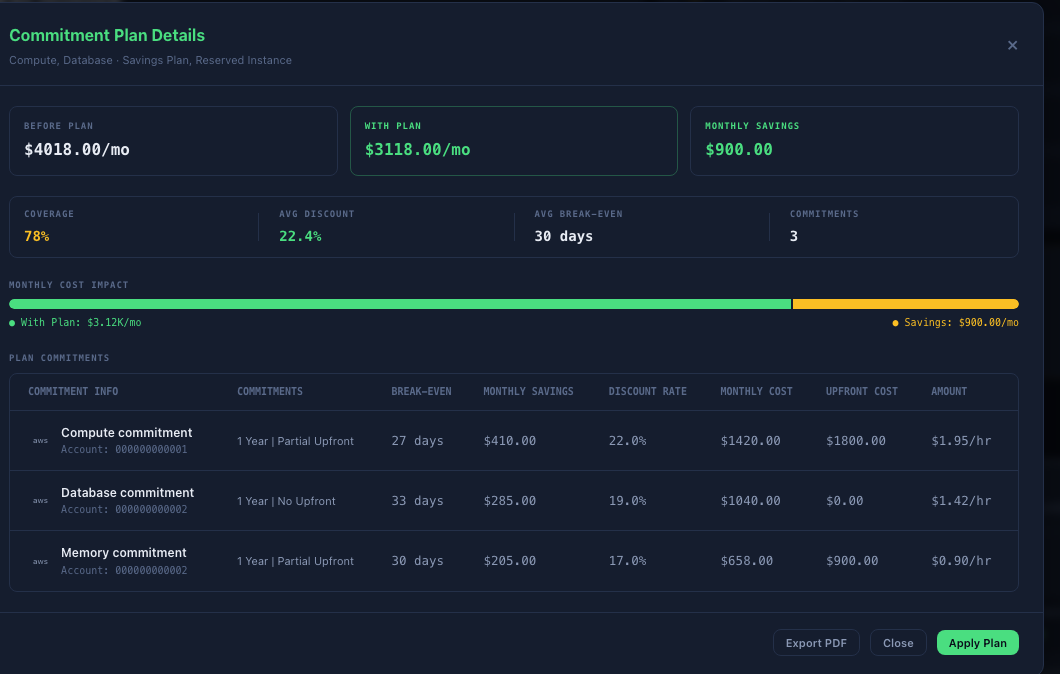
The dialog provides:
- before-plan and with-plan monthly cost;
- monthly saving and commitment coverage;
- average discount and break-even period;
- commitment count;
- service, term, payment option, cost, saving, upfront cost, and recurring amount for each item;
- a PDF export.
Select Apply Plan only after the plan scope, term, payment option, permissions, and financial commitment have been approved through your organization’s process.
Find a plan by UUID
Use the search field in the page header when you have a plan UUID from an analysis or approval workflow.
- Enter the full plan UUID.
- Select Search.
- Review the returned plan details.
If the plan is not available, Factor Fifty shows an error beneath the header.
Commitment Inventory
The inventory lists commitments currently returned for the selected provider.
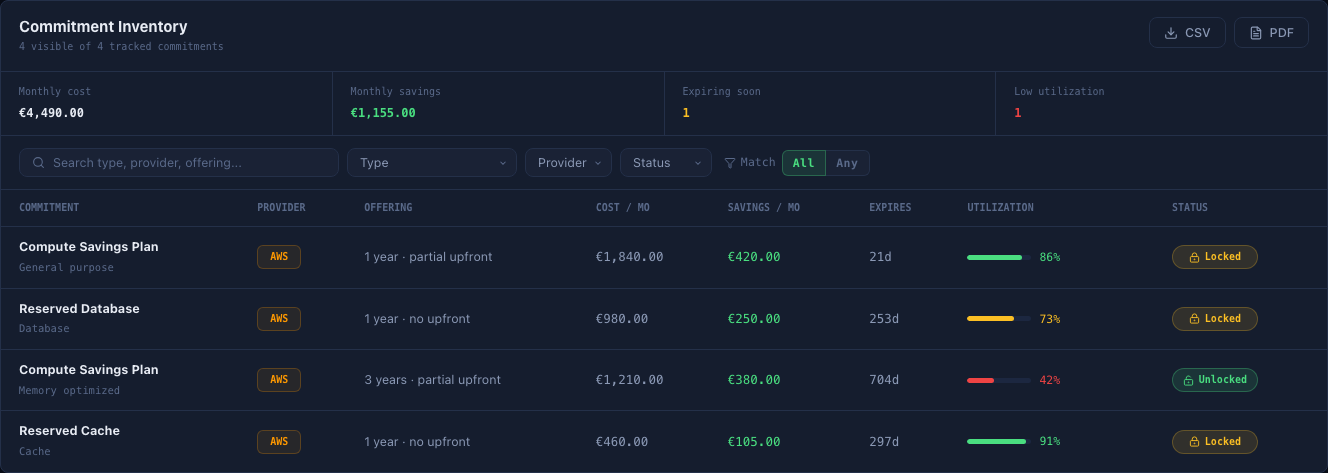
The summary strip shows:
- total monthly commitment cost;
- total monthly commitment saving;
- commitments expiring within 30 days;
- commitments below 50% utilization.
The table includes commitment type, provider, offering, cost, saving, time to expiry, utilization, and lock status.
Filter and sort the inventory
Use the search field to match type, provider, or offering. You can also filter by:
- commitment type;
- provider;
- status.
Choose All to require every selected filter or Any to match at least one. Select a column heading to sort the table.
Export the inventory
Use CSV for analysis or reconciliation and PDF for a formatted point-in-time report. The export reflects the rows visible after search and filtering.
Data periods and freshness
| Information | Period used |
|---|---|
| Realized MTD and coverage | Current calendar month for the selected provider |
| Lifetime saving | Total returned by the savings source |
| Recommended plans | Current plan analysis returned for the customer |
| Inventory status and utilization | Latest commitment inventory returned by the source |
| Expiring exposure | Commitments within the next 30 days |
Commitment data can arrive after provider billing activity. Confirm price, term, and current utilization in the provider source before making a purchase or renewal decision.
Recommended review routine
- Confirm the provider.
- Read the FinOps Summary and work through the Priority Queue.
- Compare realised savings, missed savings, and coverage.
- Review expiring and low-utilization commitments in the inventory.
- Compare the recommended plan with the flexible and maximum-saving alternatives.
- Open plan details and validate every included commitment.
- Complete the required financial approval before selecting Apply Plan.