Executive Overview
The Overview tab is the customer-level landing page in Factor Fifty. It brings financial performance, optimisation opportunities, and cloud posture together in one place so you can quickly answer:
- Are we likely to stay within budget this month?
- Where are our largest cloud costs?
- How much have we saved, and what additional savings are available?
- Which security or compliance items need attention?
- What should we act on first?
The Overview is a summary. Select a card or recommended action to open the relevant detailed area when you need to investigate further.
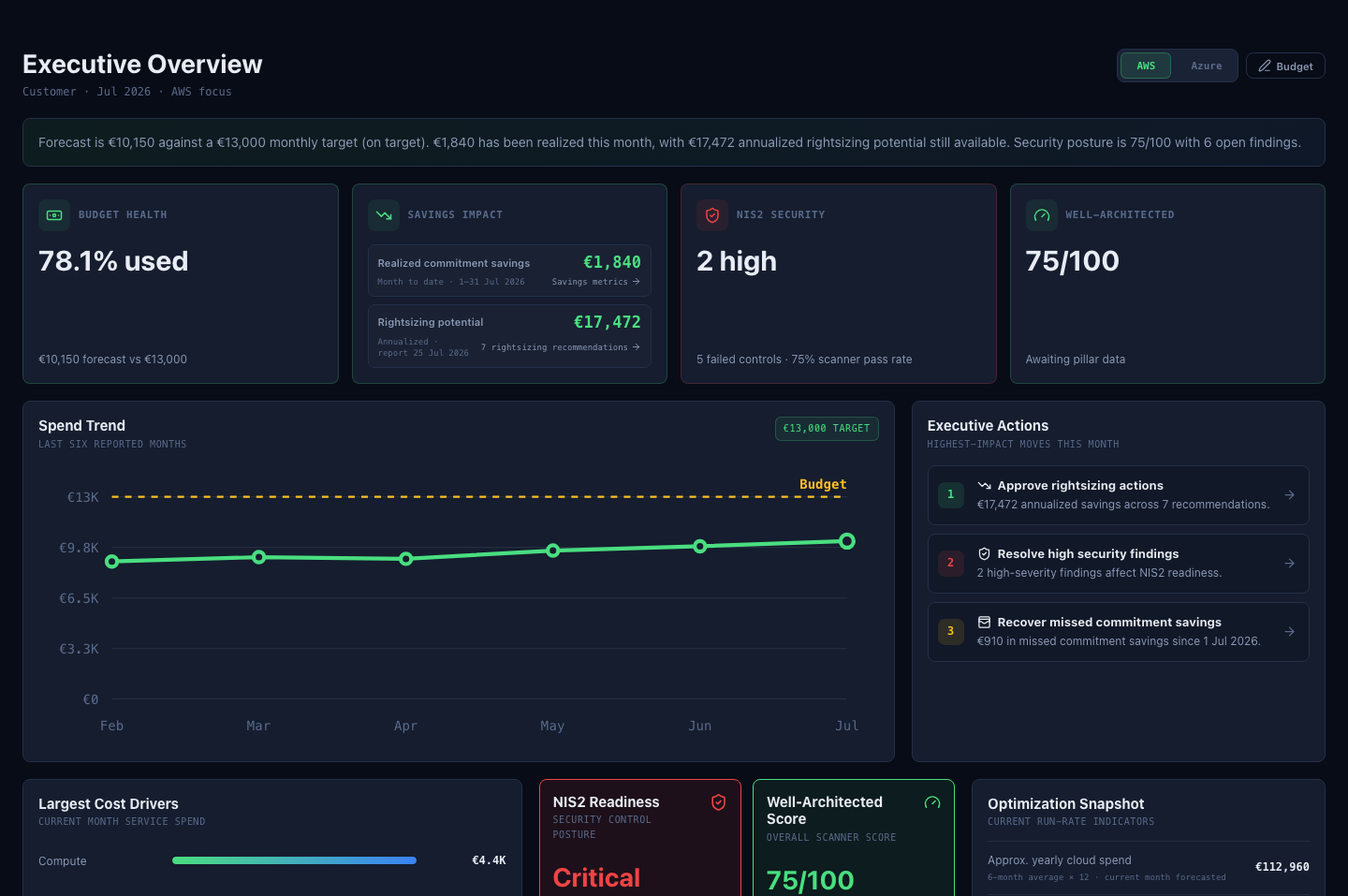
Open the Executive Overview
- Open Factor Fifty.
- Select Overview in the customer navigation.
- Choose AWS or Azure at the top of the page to focus the provider-specific indicators.
The page header shows the customer, current month, and selected cloud provider.
Customer workspace tabs
The customer navigation keeps all customer-level information together.
| Tab | Purpose |
|---|---|
| Overview | Review the customer’s most important financial, optimisation, and cloud posture indicators. |
| Projects | View, add, and manage the customer’s cloud projects and environments. |
| Financials | Explore detailed costs, forecasts, comparisons, and configurable financial dashboards. |
| Rightsizing | Review resource recommendations and estimate the savings available from resizing or removing resources. |
| Monitoring | Review operational monitoring information and active signals. |
| Patching | Manage patching information. This tab is available only to platform administrators. |
| Savings | Review commitment coverage, realised commitment savings, and missed savings opportunities. |
| Cloud posture | Investigate security findings, framework controls, and Well-Architected results. |
This guide covers the Overview tab. The other tabs provide the detailed records behind its summary cards and actions.
Provider focus
Use the AWS / Azure selector to change the provider focus. Your selection is remembered for this customer.
The selector changes provider-specific savings, rightsizing, and cloud posture information. The executive budget and customer cost trend remain customer-level indicators.
Changing the provider focus does not convert currencies or change the customer’s budget.
Executive budget
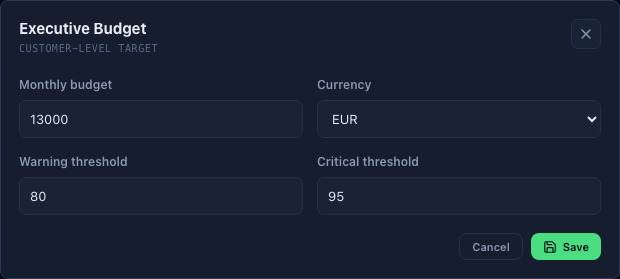
Select Budget in the upper-right corner to review the customer’s monthly target.
Customer administrators can configure:
| Setting | Meaning |
|---|---|
| Monthly budget | The customer’s reporting target for one month. It does not impose a spending limit in the cloud provider. |
| Currency | The display currency for the budget: EUR or USD. |
| Warning threshold | The percentage of the monthly budget at which the status changes to Watch. The default is 80%. |
| Critical threshold | The percentage at which the status changes to Over target. The default is 100% and it must be equal to or higher than the warning threshold. |
Other users can view the budget but cannot update it.
Executive summary
The sentence below the page header combines the most important current signals into a short summary:
- forecast compared with the monthly budget;
- realised savings and available rightsizing potential;
- security score and open findings.
Use this summary as a starting point, then review the cards and Executive Actions for the underlying details.
Summary cards
Budget Health
Budget Health compares the forecast for the current month with the configured monthly budget.
The current-month forecast extrapolates the spend recorded so far across the full number of days in the month. For example, if the month is half complete, Factor Fifty projects the current run rate to month end.
| Status | Meaning |
|---|---|
| On target | The forecast is below the warning threshold. |
| Watch | The forecast has reached the warning threshold. |
| Over target | The forecast has reached the critical threshold. |
| No target | No monthly budget is configured. |
| No forecast | There is not enough current spend data to calculate a forecast. |
The percentage shown is the forecast as a percentage of the monthly budget, not the percentage of the month that has already elapsed.
Select the card to open Financials.
Savings Impact
This card separates savings already achieved from savings that may still be available:
- Realised commitment savings shows commitment savings for the current month to date.
- Rightsizing potential annualises the monthly savings from recommendations in the latest rightsizing report.
Each row links to its detailed area:
- select realised savings to open Savings;
- select rightsizing potential to open Rightsizing.
These figures cover different saving mechanisms and reporting periods, so they should not be added together as if they were one monthly total.
NIS2 Security
NIS2 Security summarises the latest NIS2 framework results for the selected provider.
Depending on the data returned by the latest scan, the card shows:
- high-severity findings;
- the total number of findings;
- failed controls;
- the overall scanner pass rate.
If the NIS2 framework has been muted for the customer, the card shows Muted. Select the card to open Cloud posture and review the detailed controls and findings.
Well-Architected
The Well-Architected card shows the overall scanner score on a scale from 0 to 100 and identifies the weakest pillar.
| Colour | Score |
|---|---|
| Green | 70 or higher |
| Amber | 50–69 |
| Red | Below 50 |
| Neutral | No score is available |
Select the card to open Cloud posture. A high overall score can still contain individual findings that require attention, so always review the weakest pillar and high-severity findings.
Spend Trend
The Spend Trend chart shows the last six reported months of customer spend.
- The horizontal axis shows each reported month.
- The vertical axis shows spend in the customer’s display currency.
- When a monthly budget is configured, a dashed budget line makes variances easy to spot.
- The current month reflects spend reported so far; use Budget Health for the projected month-end result.
Use the chart to identify sustained growth, recurring peaks, or a change in run rate before opening Financials for detailed analysis.
Executive Actions
Executive Actions presents up to four prioritised recommendations based on the data currently available. An action can direct you to:
- configure an executive budget;
- review a budget variance or month-end forecast;
- approve rightsizing work;
- resolve high-severity NIS2 findings or review failed controls;
- recover missed commitment savings or improve commitment coverage.
Select an action to open the relevant detailed tab. When the key indicators are healthy, Factor Fifty recommends maintaining the current posture. If required data is unavailable, it asks you to verify data availability instead.
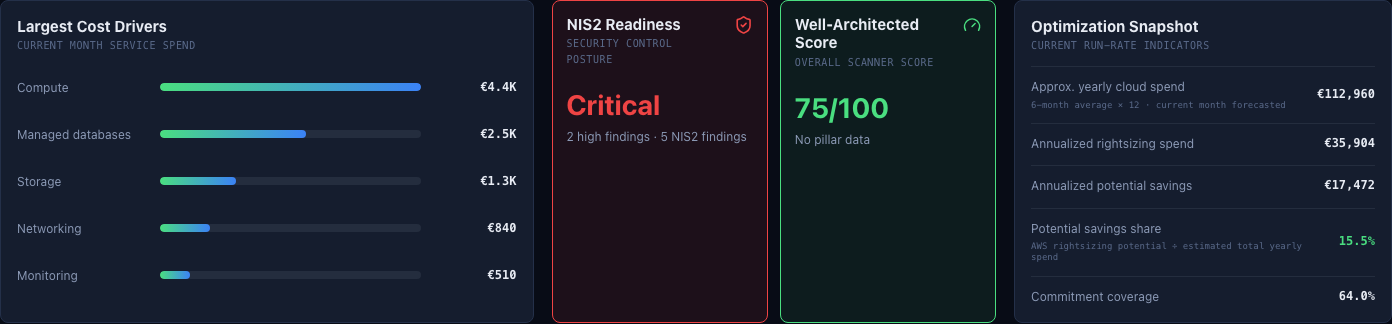
Largest Cost Drivers
Largest Cost Drivers ranks up to six services by current-month spend.
The bar length shows each service’s size relative to the largest cost driver; the amount on the right is the service’s reported spend. Use this panel to identify where a budget variance or run-rate increase is concentrated.
NIS2 Readiness
The NIS2 Readiness panel translates the latest NIS2 results into an executive status.
| Status | Meaning |
|---|---|
| Ready | No outstanding NIS2 risk was returned for the latest scan. |
| Attention | Findings or failed controls need review, or the broader security score is below 70. |
| Critical | High-severity findings exist, or the broader security score is below 50. |
| Muted | NIS2 is hidden by the customer’s framework preference. |
| No data | No usable NIS2 result is available. |
The supporting text shows high findings and total findings when available. If the scan only provides control-level data, it shows the number of controls requiring attention.
Well-Architected Score
The larger Well-Architected Score panel repeats the overall score and names the weakest pillar. This makes it easier to connect the executive status with the area that should be investigated first.
Muted findings are excluded from the adjusted score. Select Cloud posture from the customer navigation to review pillar scores and individual findings.
Optimization Snapshot
The Optimization Snapshot combines the current run-rate indicators:
| Indicator | How to interpret it |
|---|---|
| Approx. yearly cloud spend | The average of up to the last six reported months, multiplied by 12. At least three months are required. When the current month is included, its month-end forecast is used. |
| Annualized rightsizing spend | The current monthly cost of resources in the latest active rightsizing recommendations, multiplied by 12. |
| Annualized potential savings | The monthly savings in those recommendations, multiplied by 12. |
| Potential savings share | Annualized rightsizing potential divided by approximate yearly cloud spend. |
| Commitment coverage | The percentage of eligible spend covered by active commitments for the selected provider. |
The yearly spend estimate and rightsizing figures use different source periods. Treat them as directional planning indicators and confirm an action in Financials, Rightsizing, or Savings before changing a cloud resource or commitment.
Data periods and freshness
The panels can use different reporting dates:
| Information | Period used |
|---|---|
| Budget forecast and cost drivers | Current month |
| Spend trend | Last six reported months |
| Realised commitment savings | Current month to date |
| Rightsizing | Latest available rightsizing report |
| NIS2 and Well-Architected | Latest available security scan |
The relevant period is shown beside a value where possible. A No data, No score, or Awaiting message normally means the corresponding scan or cost dataset has not returned usable information yet.
Recommended review routine
For a quick executive review:
- Confirm the correct AWS or Azure focus.
- Read the executive summary and check Budget Health.
- Work through Executive Actions in order.
- Review Largest Cost Drivers for the source of financial changes.
- Check NIS2 Readiness and the weakest Well-Architected pillar.
- Compare realised savings with the remaining opportunity in Optimization Snapshot.
- Open the detailed customer tab before approving operational or financial changes.